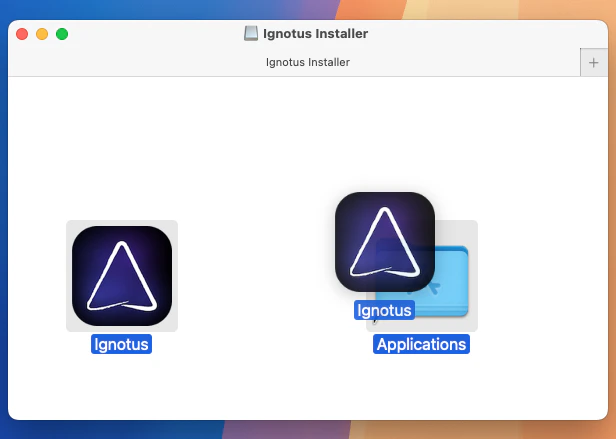
When you launch Logical for the first time, you’ll be guided through an onboarding wizard.
1
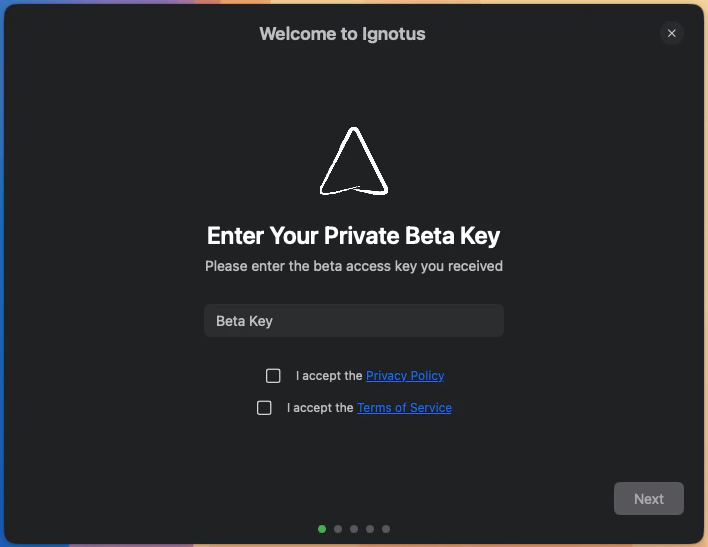
Enter Your Invitation Key
The setup wizard will prompt you to enter your private beta invitation key again to activate your account.
Enter your invitation key in the onboarding wizard.
2
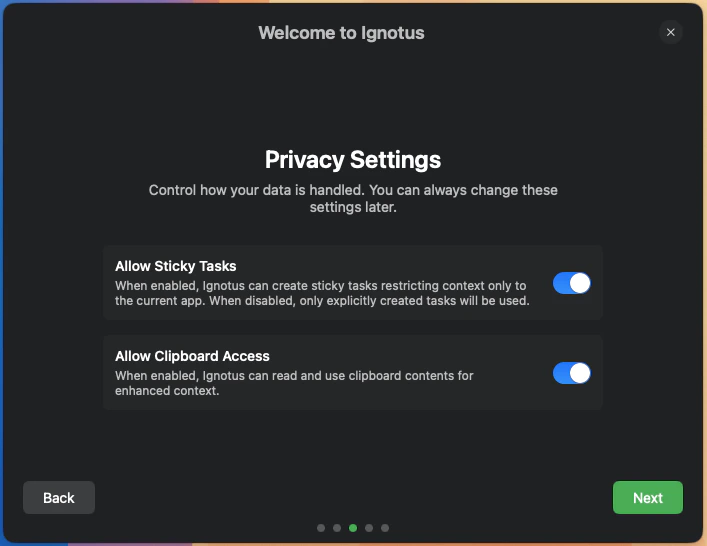
Configure Privacy Settings
Next, you’ll configure your privacy preferences. These settings control how Logical interacts with your applications and data.
Configure your privacy settings during setup.
You can always change these settings later from the main application preferences.
3
Give Permissions
Logical needs two key permissions to work properly:
Screen Recording: This allows Logical to capture and analyze your screen.
Accessibility: This allows Logical to detect focus changes and other important events.
After granting the screen recording permission, you may have to restart Logical for the changes to take effect. Please refer to the troubleshooting guide if you encounter any issues.
Congratulations! Logical is now installed and ready to use. To get the most out of the application, we recommend following our Quick Start Guide to learn the essential features and workflows.
Need help? If you encounter any issues during installation, please refer to the troubleshooting guide or contact us at [email protected].