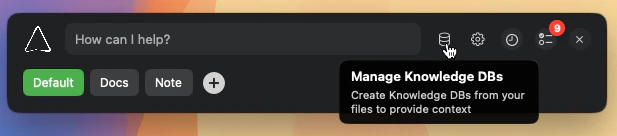
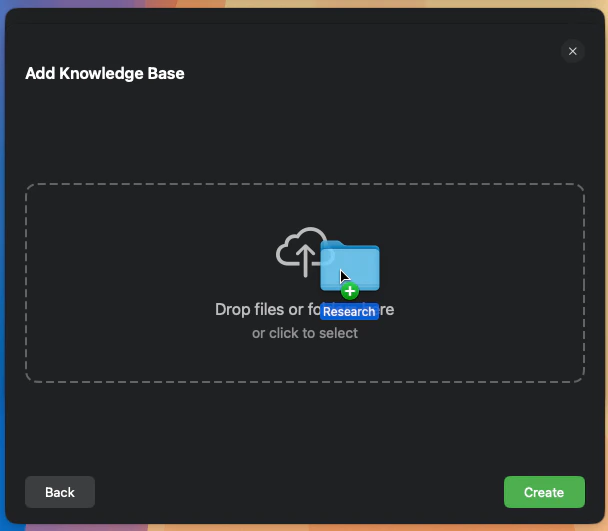
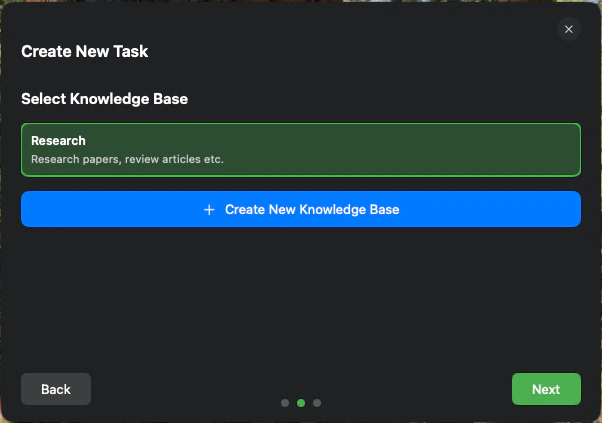
A Knowledge Base is your secure, local repository of information. By creating one, you provide Logical with specific context, enabling it to deliver more relevant and accurate assistance tailored to your projects and personal data.When you attach a Knowledge Base to your current work, Logical uses its content to better understand your questions and generate personalized answers.
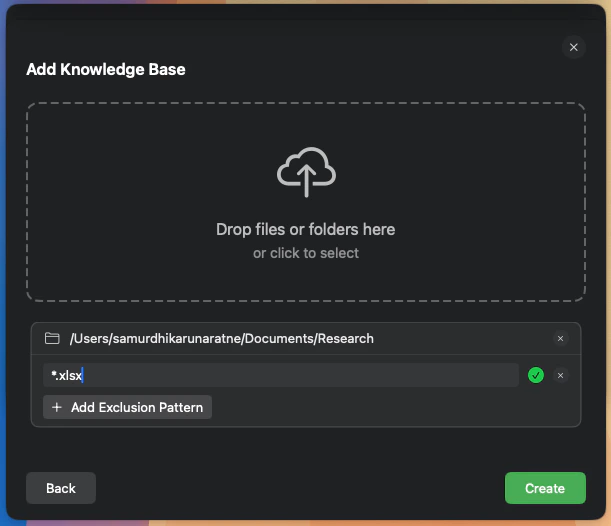
When you add a folder to a Knowledge Base, you can specify exclusion patterns to prevent certain files or subfolders from being included. This is useful for ignoring things like node_modules, build artifacts, or git directories.Logical uses glob patterns for exclusions.
To exclude a specific folder name anywhere it appears, use the folder name (e.g., node_modules).
To exclude a specific file type, use a pattern like *.log.
To exclude a directory at the root of the folder you’re adding, use a pattern like build/.
You can add multiple exclusion patterns for each folder you add.
Add glob patterns to exclude specific files or folders from your Knowledge Base.
For quick, temporary needs, you can “hot-attach” a Knowledge Base directly to your current context.
1
Open the Knowledge Base Selector
In the main Logical window, click the book icon.
The book icon allows you to quickly attach a Knowledge Base.
2
Select and Attach
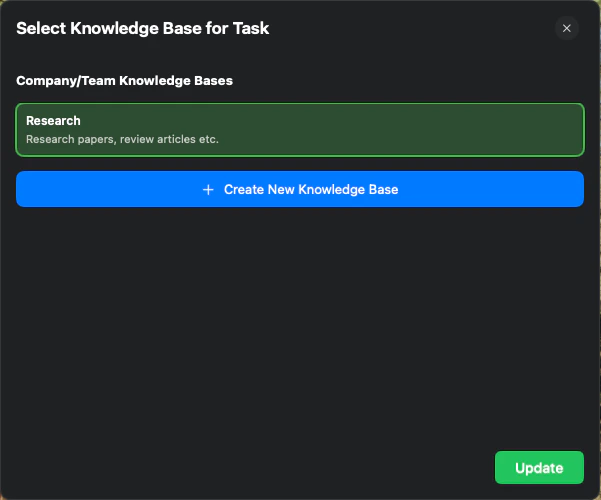
A window will appear listing your Knowledge Bases. Select one and click Update to attach it. The book icon will turn green, indicating that a Knowledge Base is active.
Select a Knowledge Base to attach it to your current context.
To detach the Knowledge Base, simply click the green book icon again.
Your Knowledge Base contents are stored locally on your device and are not sent to Logical servers.However, snippets of content may occasionally be sent to third-party LLM service providers for context understanding. For more details on how your data is handled, please refer to our Privacy Policy.