> ## Documentation Index
> Fetch the complete documentation index at: https://docs.logical.io/llms.txt
> Use this file to discover all available pages before exploring further.
# Quickstart
> Learn how to get started with Logical in just a few minutes.
## Your First Question
The simplest way to experience Logical is to ask it a question about what's currently on your screen. Let's try this with a real example.
Navigate to any article or webpage. For this example, we'll use a New York Times article.
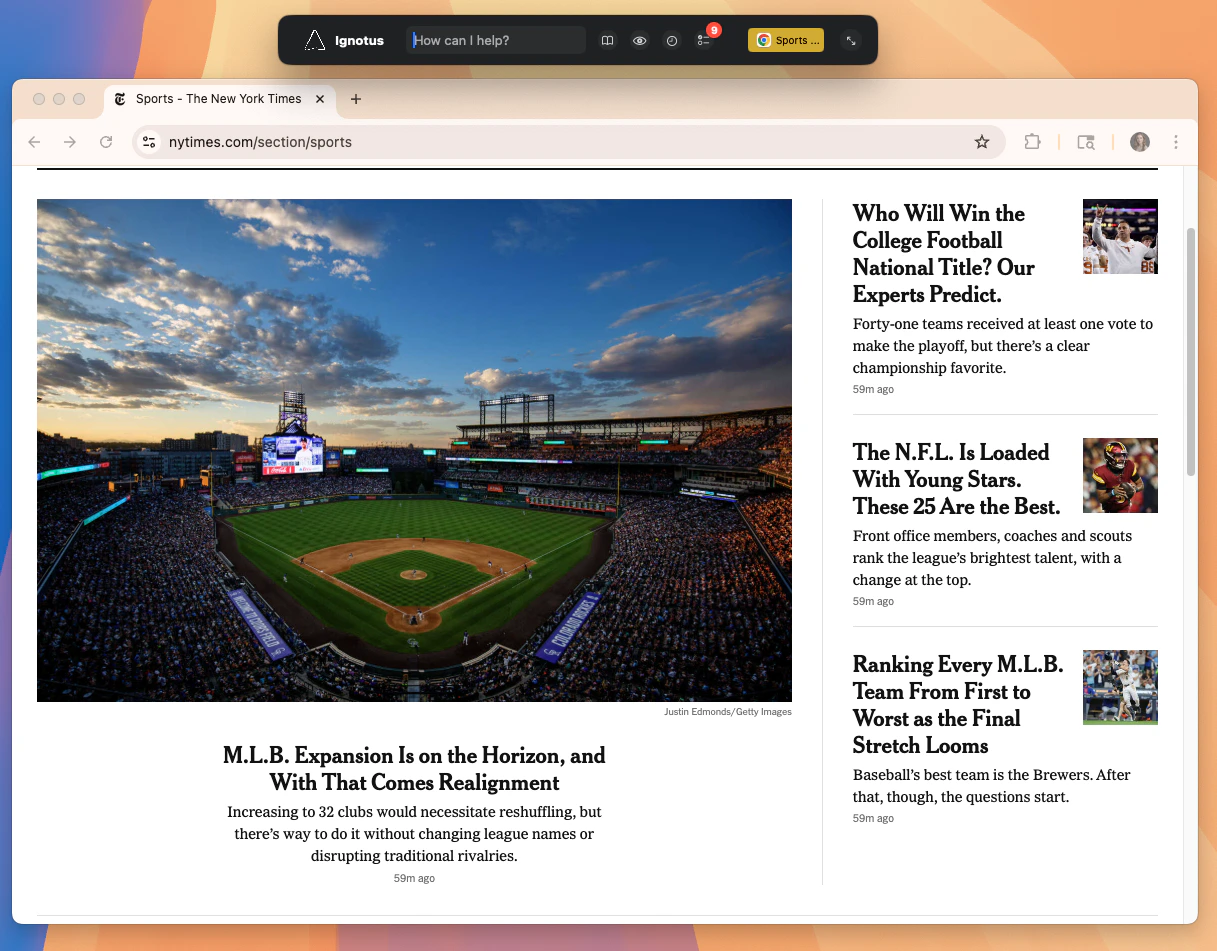 Open Logical and ask a question about the content you're viewing. Try something like "What are the main points of this article?" or "Summarize what I'm reading."
 Logical will analyze the article and provide a comprehensive response based on the content it can see.
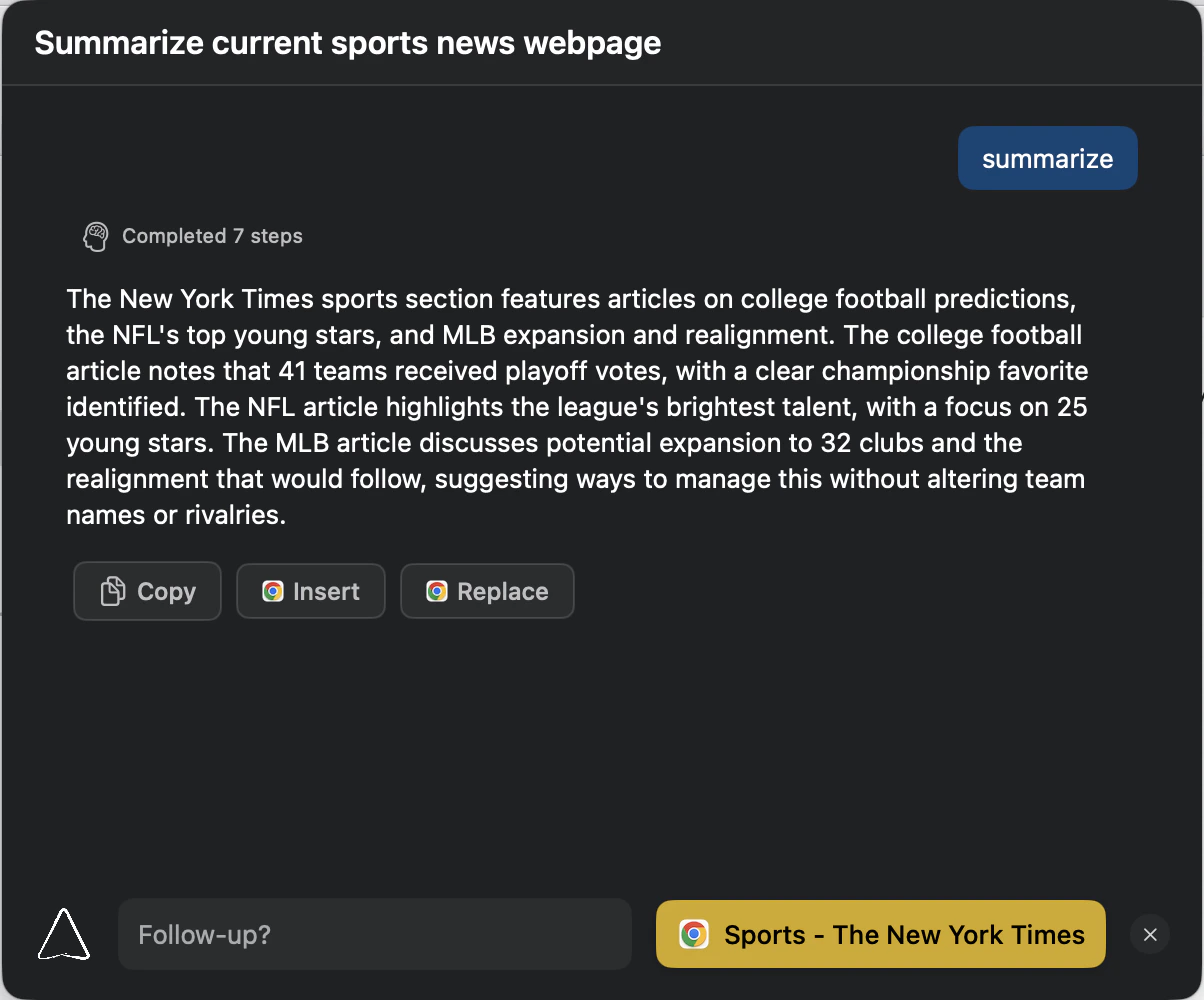 That's it! Logical automatically understood what was on your screen and provided relevant assistance without you needing to copy, paste, or manually provide context.
## Positioning and Visibility
Logical is designed to stay out of your way while remaining easily accessible. The main window adapts to your workflow automatically.
### Window Modes
When Logical is your active application, it displays in default mode with full interface elements.
That's it! Logical automatically understood what was on your screen and provided relevant assistance without you needing to copy, paste, or manually provide context.
## Positioning and Visibility
Logical is designed to stay out of your way while remaining easily accessible. The main window adapts to your workflow automatically.
### Window Modes
When Logical is your active application, it displays in default mode with full interface elements.
 When you switch focus to another application, Logical automatically switches to compact mode and floats above other windows for quick access.
 For maximum focus and minimal distraction, Atomic Mode provides a streamlined interface with only essential elements visible.
 ### Flexible Positioning
The Logical window can be dragged to any position on your screen or moved between multiple displays. This lets you position it wherever it's most convenient for your current workflow.
### Menu Bar Controls
The Logical icon in your Mac menu bar (top-right corner) provides quick access to window management options.
### Flexible Positioning
The Logical window can be dragged to any position on your screen or moved between multiple displays. This lets you position it wherever it's most convenient for your current workflow.
### Menu Bar Controls
The Logical icon in your Mac menu bar (top-right corner) provides quick access to window management options.
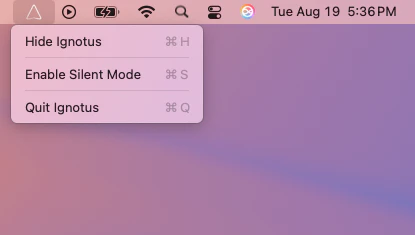 **Available options**:
* **Hide Main Window** - Logical continues working in the background
* **Show Main Window** - Bring the window back to the foreground
* **Quit Logical** - Close the application entirely
## Working Across Multiple Applications
For more complex workflows that span multiple applications, you can create **Tasks** to group related windows together. Learn how to set up and use Tasks in our [Cross-App Understanding guide](/features/cross-app-understanding).
## Building Your Knowledge Base
To give Logical access to your personal or project-specific information, you can create **Knowledge Bases** from your documents and files. Get started with our [Knowledge Bases guide](/features/knowledge-dbs).
## What's Next?
Now that you've seen Logical in action, explore these powerful features:
* **[Sentry Mode](/features/sentry-mode)** - Let Logical proactively monitor your screen for issues
* **[To-Do Identification](/features/todo-identification)** - Automatically capture tasks from your conversations
* **[Context Understanding](/features/context-understanding)** - Learn how Logical gathers context to help you
Questions or need help? Contact us at [hello@trylogical.ai](mailto:hello@trylogical.ai) or check our [troubleshooting guide](/troubleshooting).
**Available options**:
* **Hide Main Window** - Logical continues working in the background
* **Show Main Window** - Bring the window back to the foreground
* **Quit Logical** - Close the application entirely
## Working Across Multiple Applications
For more complex workflows that span multiple applications, you can create **Tasks** to group related windows together. Learn how to set up and use Tasks in our [Cross-App Understanding guide](/features/cross-app-understanding).
## Building Your Knowledge Base
To give Logical access to your personal or project-specific information, you can create **Knowledge Bases** from your documents and files. Get started with our [Knowledge Bases guide](/features/knowledge-dbs).
## What's Next?
Now that you've seen Logical in action, explore these powerful features:
* **[Sentry Mode](/features/sentry-mode)** - Let Logical proactively monitor your screen for issues
* **[To-Do Identification](/features/todo-identification)** - Automatically capture tasks from your conversations
* **[Context Understanding](/features/context-understanding)** - Learn how Logical gathers context to help you
Questions or need help? Contact us at [hello@trylogical.ai](mailto:hello@trylogical.ai) or check our [troubleshooting guide](/troubleshooting).