> ## Documentation Index
> Fetch the complete documentation index at: https://docs.logical.io/llms.txt
> Use this file to discover all available pages before exploring further.
# To-Do Identification
> Automatically detect and organize tasks from your conversations and applications.
## Overview
Logical can automatically identify tasks and action items from your conversations, emails, and documents. This feature helps you stay organized by capturing to-do items that might otherwise be missed, without requiring you to manually add them to a list.
## Configuration
To get the most out of To-Do Identification, you'll want to configure a few settings.
First, ensure that To-Do Identification is turned on in the main settings panel.
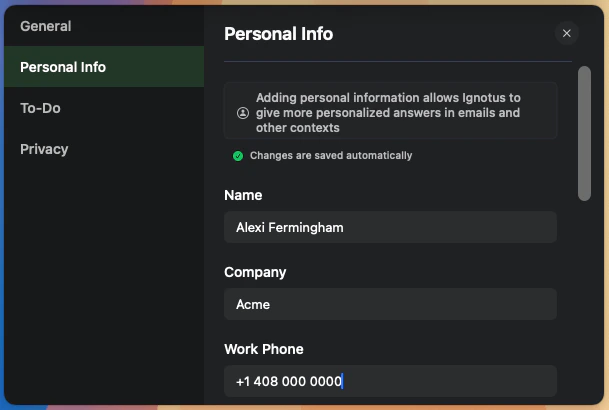
For the most accurate results, specify your name in the Personal Details section of the settings. This helps Logical distinguish between tasks assigned to you versus tasks for other people.
 Select how you want to be notified when Logical identifies a new to-do item.
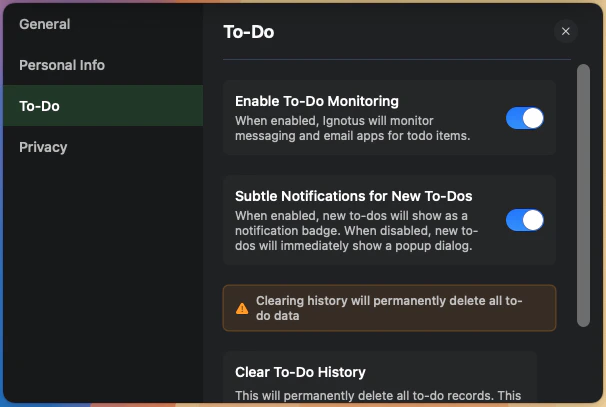 You have two options:
* **Immediate Pop-up**: A dialog appears right away, allowing you to accept or ignore the item.
* **Notification Badge**: A small badge appears in the main window for less intrusive notifications.
## How Notifications Work
Depending on your chosen notification style, you'll see to-do items in different ways.
### Immediate Pop-up
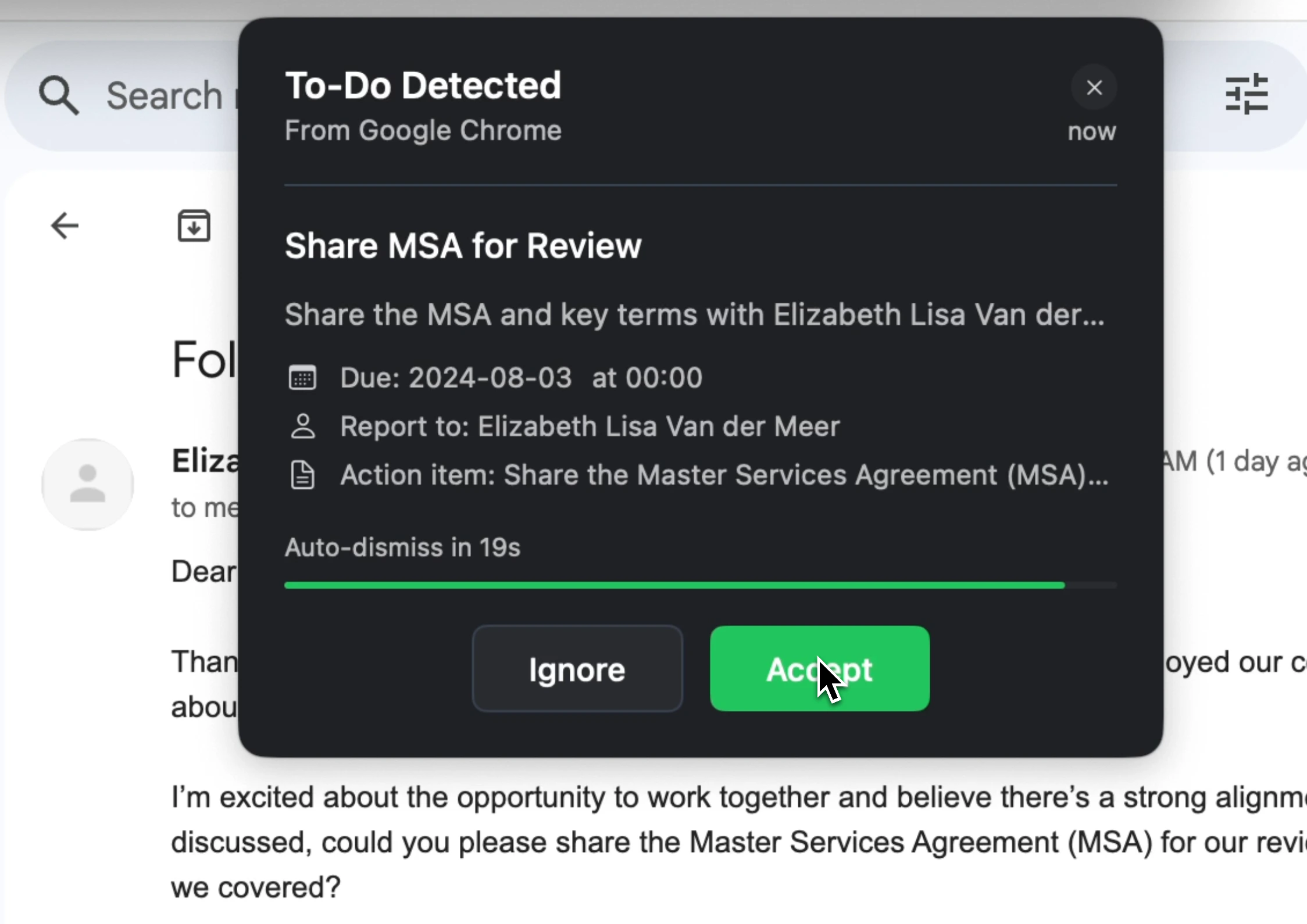
When a to-do item is identified, a dialog appears immediately with the details.
You have two options:
* **Immediate Pop-up**: A dialog appears right away, allowing you to accept or ignore the item.
* **Notification Badge**: A small badge appears in the main window for less intrusive notifications.
## How Notifications Work
Depending on your chosen notification style, you'll see to-do items in different ways.
### Immediate Pop-up
When a to-do item is identified, a dialog appears immediately with the details.
 ### Notification Badge
For a less disruptive experience, a small badge appears in the main Logical window when new items are identified.
### Notification Badge
For a less disruptive experience, a small badge appears in the main Logical window when new items are identified.
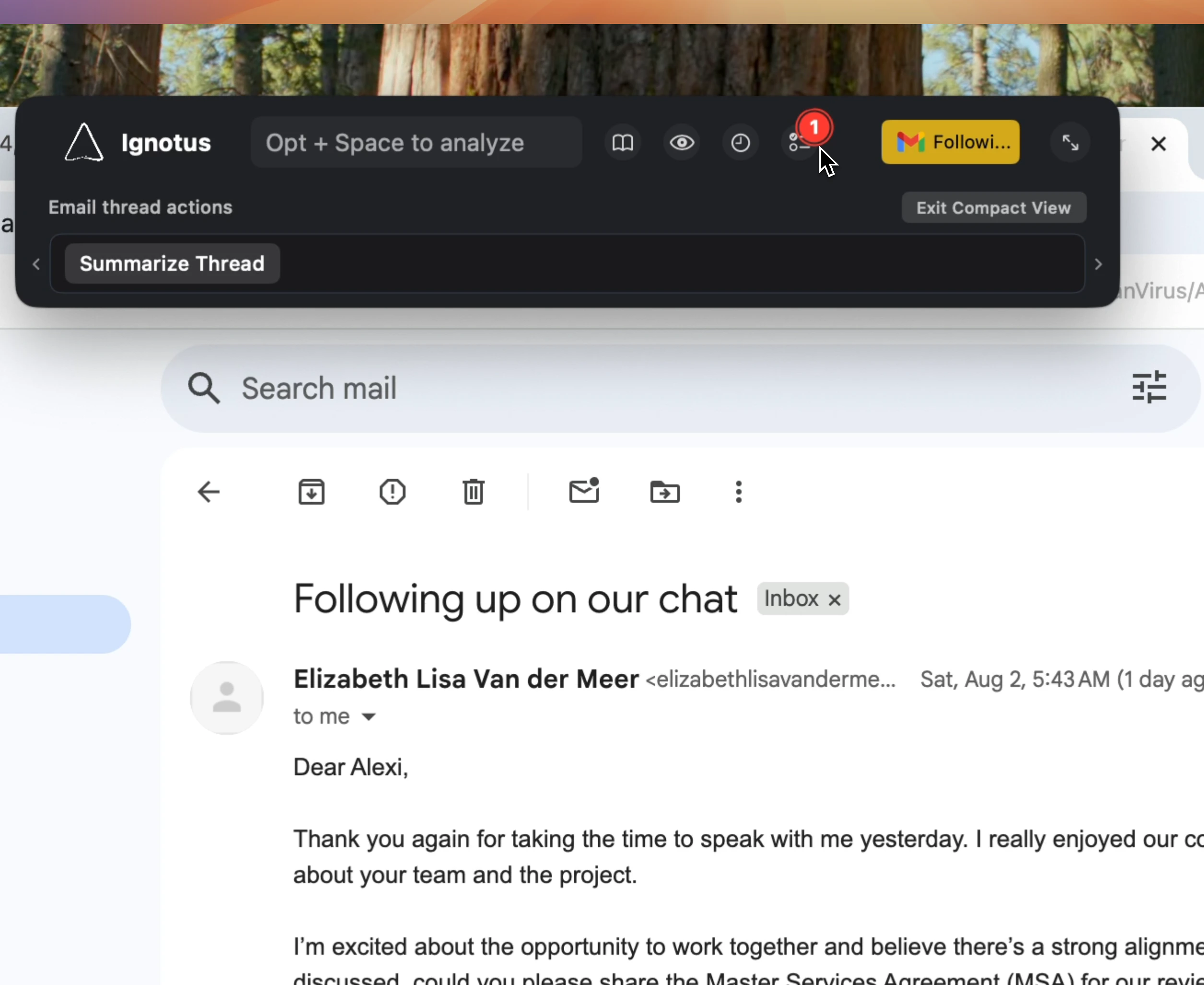 Click on the badge to see the details and choose whether to accept or ignore the item.
## Managing Your To-Do Items
Click the to-do list icon in the main window to see all identified items (except those you've explicitly ignored).
Click on the badge to see the details and choose whether to accept or ignore the item.
## Managing Your To-Do Items
Click the to-do list icon in the main window to see all identified items (except those you've explicitly ignored).
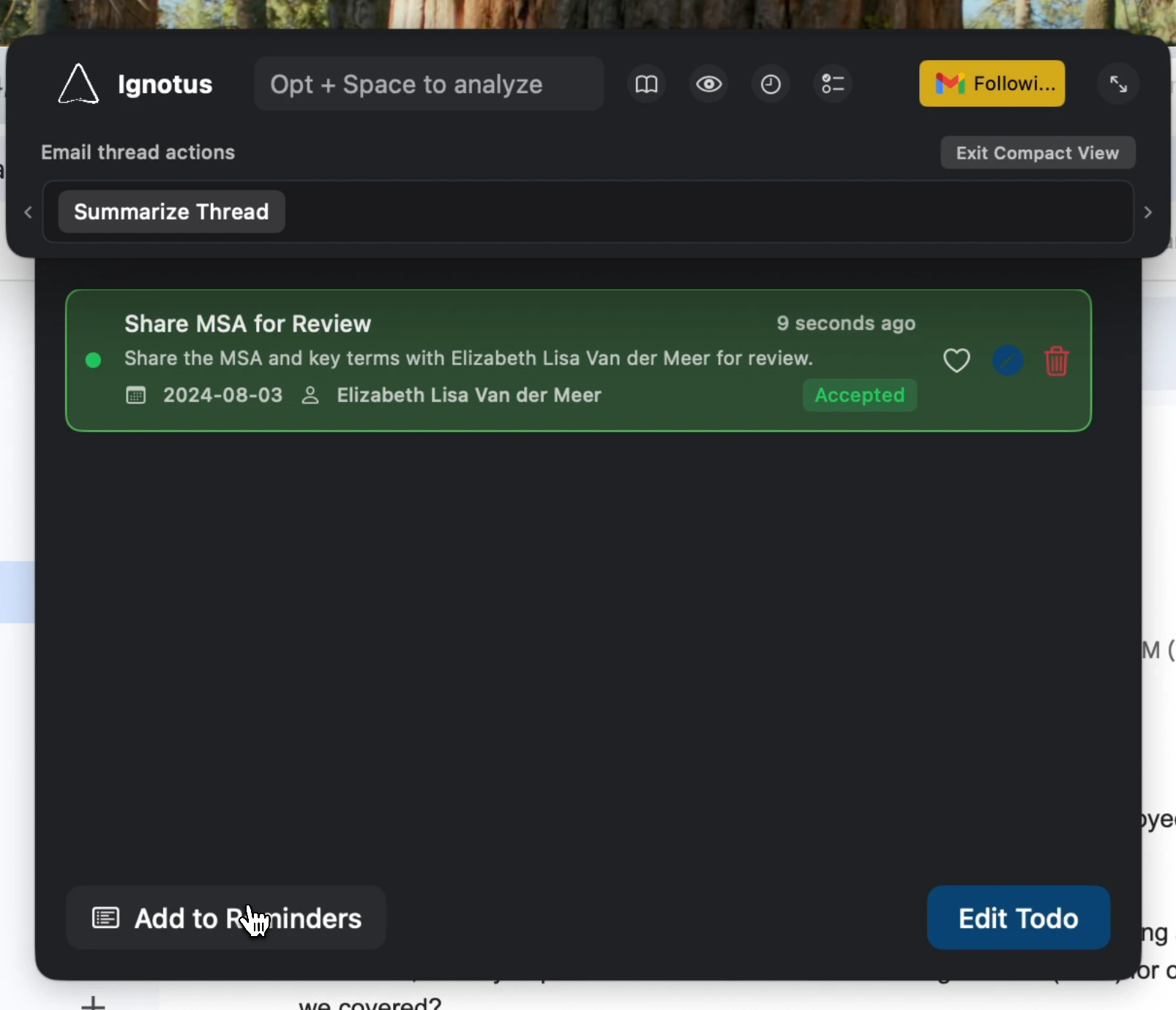
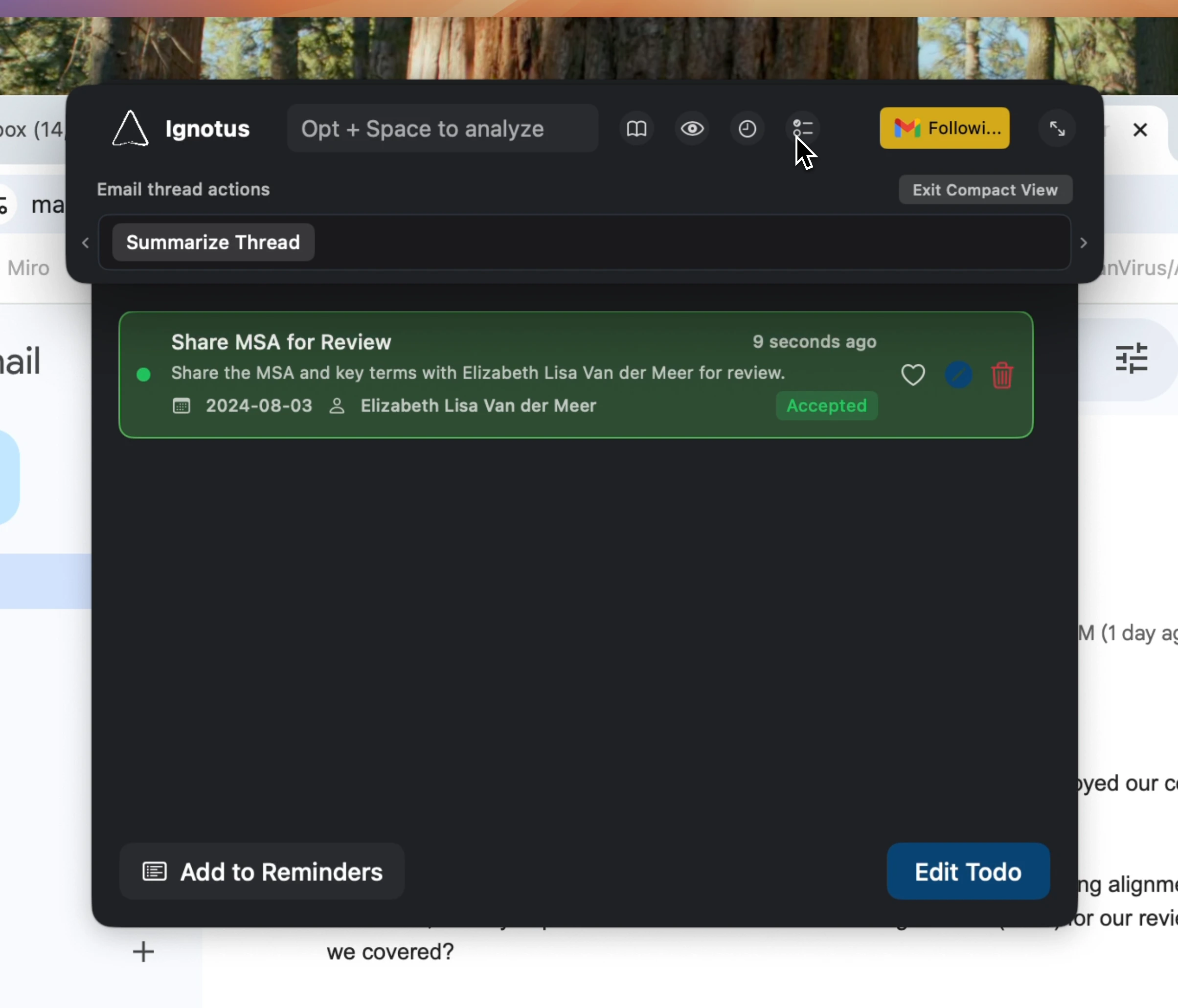 For any to-do item, you can add it directly to your system's Reminders app by clicking the appropriate button.
 ## Deleting To-Do Items
You have two options for deleting identified to-do items.
From the main to-do list window, you can delete items one by one as needed.
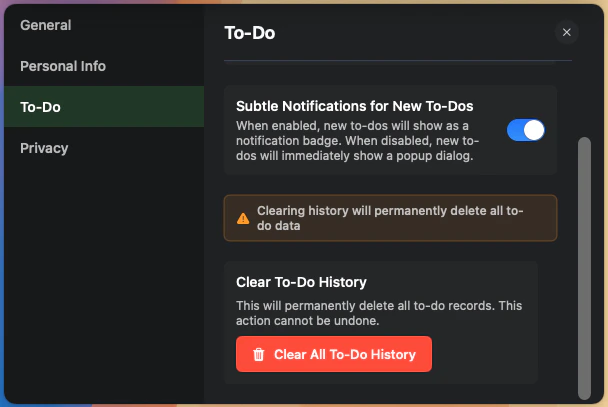
To delete all to-do items at once (including accepted ones and cached items), use the bulk delete option in the settings.
## Deleting To-Do Items
You have two options for deleting identified to-do items.
From the main to-do list window, you can delete items one by one as needed.
To delete all to-do items at once (including accepted ones and cached items), use the bulk delete option in the settings.
 ## Privacy
Your to-do items are stored locally on your device and are not sent to Logical servers.
However, when Logical may send your content to third-party LLM service providers for processing. For more details on how your data is handled, please refer to our Privacy Policy.
## Privacy
Your to-do items are stored locally on your device and are not sent to Logical servers.
However, when Logical may send your content to third-party LLM service providers for processing. For more details on how your data is handled, please refer to our Privacy Policy.