> ## Documentation Index
> Fetch the complete documentation index at: https://docs.logical.io/llms.txt
> Use this file to discover all available pages before exploring further.
# Sentry Mode
> Let Logical proactively monitor your screen for issues and provide real-time assistance.
## Overview
Sentry Mode is a proactive monitoring feature that allows Logical to observe your screen in real-time to detect issues, provide suggestions, and offer actionable help without you having to ask.
When activated, Logical will analyze the content of a selected screen or application window, identify opportunities for assistance, and present hints or actions directly in the main window.
## How to Use Sentry Mode
Follow these steps to activate and use Sentry Mode.
From the main Logical window, click the **eye icon** to open the Sentry Mode configuration panel.
 You have two options for what Logical will monitor:
* **A Single Window**: Logical will only monitor the application window that is currently focused. This is ideal for getting help with a specific task.
* **An Entire Screen**: Logical will monitor everything visible on one of your displays. This is useful for tasks that span multiple windows.
You have two options for what Logical will monitor:
* **A Single Window**: Logical will only monitor the application window that is currently focused. This is ideal for getting help with a specific task.
* **An Entire Screen**: Logical will monitor everything visible on one of your displays. This is useful for tasks that span multiple windows.
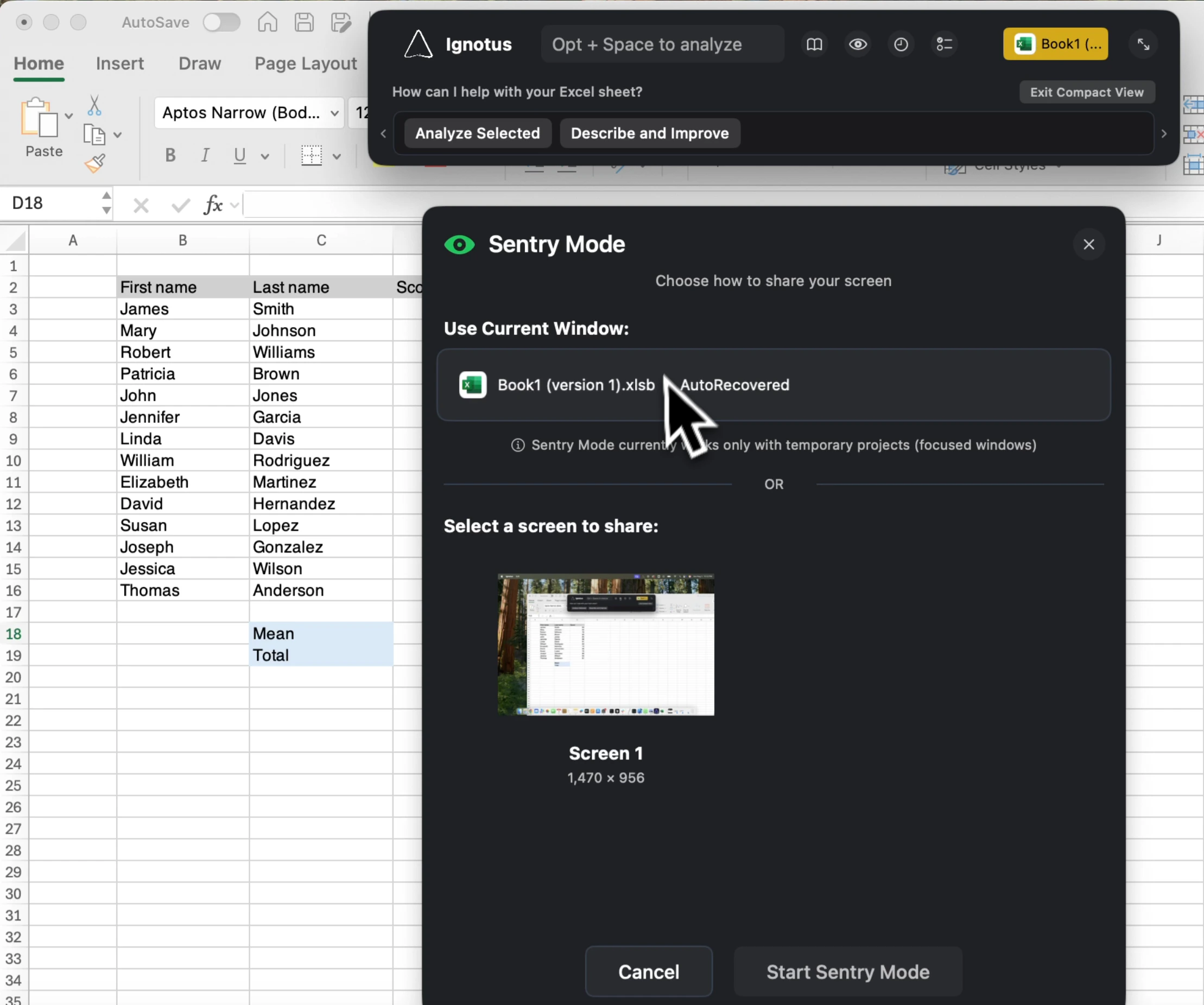 Click **Start Sentry Mode**. The eye icon in the main window will turn green, indicating that Sentry Mode is active and monitoring your selected source.
 As you work, Logical will display contextual hints and suggestions in the main window. For supported applications, you may also see buttons to perform specific actions.
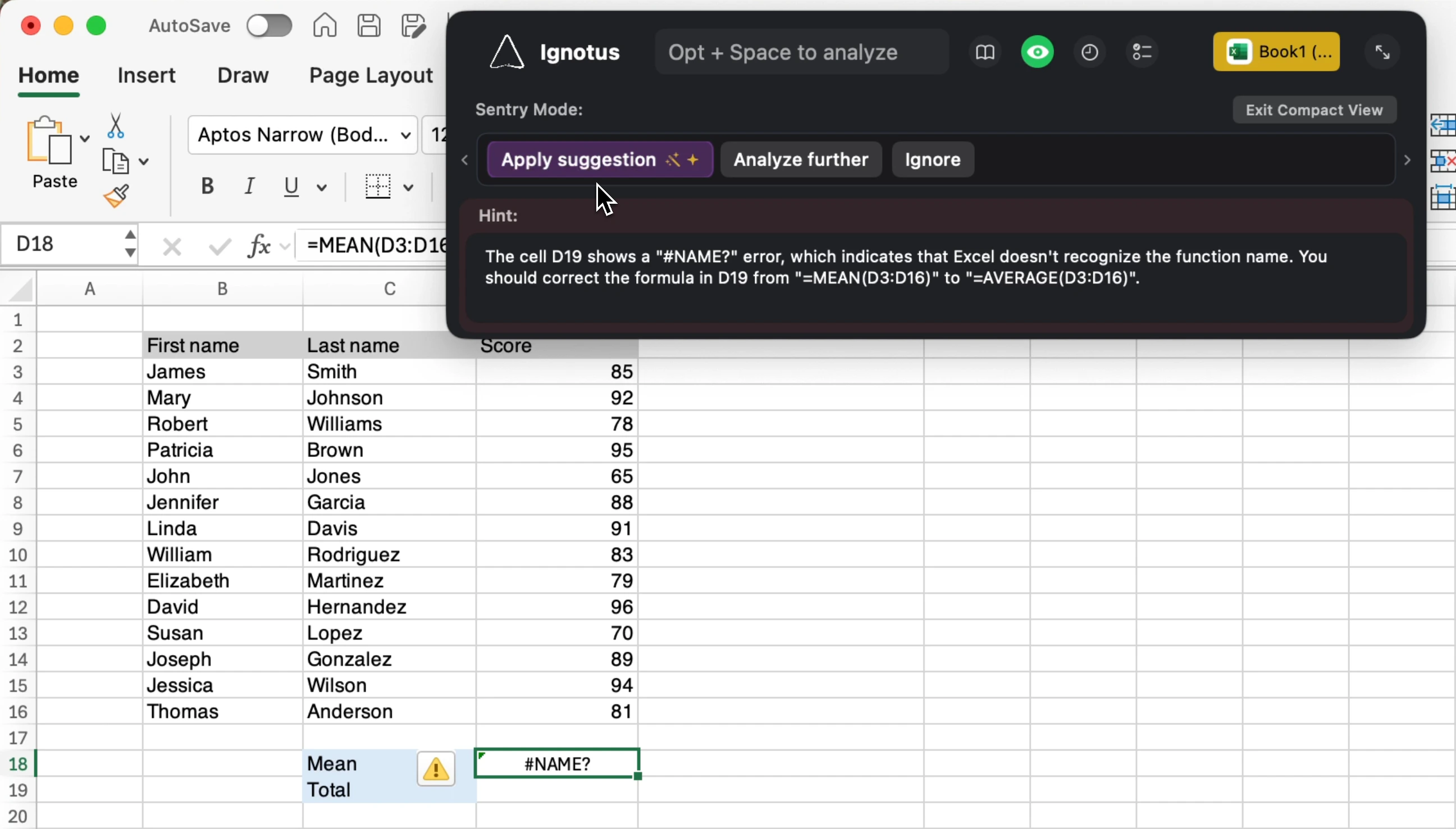 To stop monitoring, simply click the green eye icon in the main window.
## Privacy
Sentry Mode works by analyzing the visual content of your screen. Parts of this process may be done locally on your device
while other parts may require sending your screen content to third-party LLM service providers.
Your screen content is not sent to Logical servers. For more details, please refer to our Privacy Policy.
To stop monitoring, simply click the green eye icon in the main window.
## Privacy
Sentry Mode works by analyzing the visual content of your screen. Parts of this process may be done locally on your device
while other parts may require sending your screen content to third-party LLM service providers.
Your screen content is not sent to Logical servers. For more details, please refer to our Privacy Policy.