> ## Documentation Index
> Fetch the complete documentation index at: https://docs.logical.io/llms.txt
> Use this file to discover all available pages before exploring further.
# Knowledge Bases
> Build and query your personal knowledge base to give Logical context.
## Overview
A Knowledge Base is your secure, local repository of information. By creating one, you provide Logical with specific context, enabling it to deliver more relevant and accurate assistance tailored to your projects and personal data.
When you attach a Knowledge Base to your current work, Logical uses its content to better understand your questions and generate personalized answers.
## Creating a Knowledge Base
Follow these steps to create a new Knowledge Base from your files.
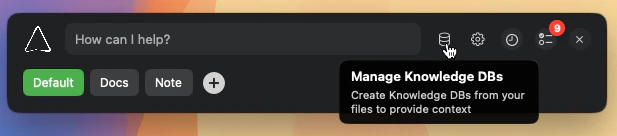
From the main Logical window, click the Knowledge Base icon to open the management screen.
 Provide a descriptive name and a brief description. This will help you easily identify it later.
Drag and drop your files and folders into the window. Logical supports a wide range of formats, including, *but not limited to*:
* **Documents**: `.pdf`, `.md`, `.txt`
* **Code Files**: `.swift`, `.js`, `.ts`, `.py`, `.java`, `.cpp`, `.c`, `.h`
* **Web & Data**: `.html`, `.css`, `.json`, `.xml`
* **Images**: `.png`, `.jpg`, `.jpeg`, `.tiff`, `.heic`, `.webp`
Provide a descriptive name and a brief description. This will help you easily identify it later.
Drag and drop your files and folders into the window. Logical supports a wide range of formats, including, *but not limited to*:
* **Documents**: `.pdf`, `.md`, `.txt`
* **Code Files**: `.swift`, `.js`, `.ts`, `.py`, `.java`, `.cpp`, `.c`, `.h`
* **Web & Data**: `.html`, `.css`, `.json`, `.xml`
* **Images**: `.png`, `.jpg`, `.jpeg`, `.tiff`, `.heic`, `.webp`
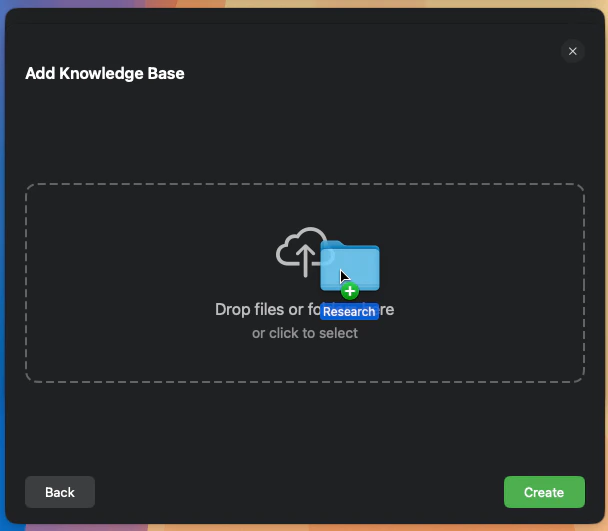 Click **Create**. Logical will then process your files to build your new Knowledge Base.
### Excluding Files and Folders
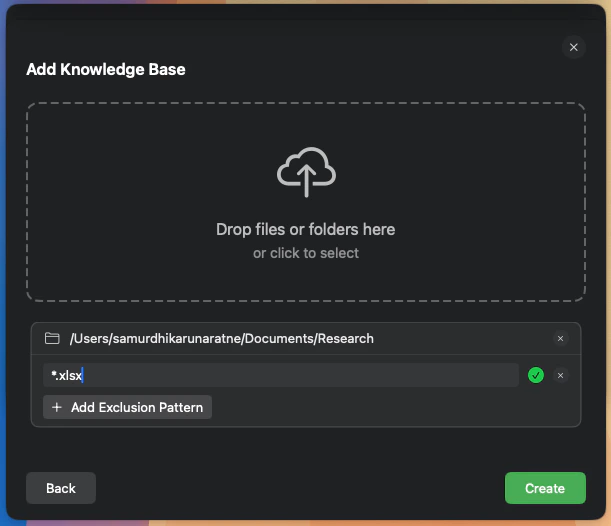
When you add a folder to a Knowledge Base, you can specify exclusion patterns to prevent certain files or subfolders from being included. This is useful for ignoring things like `node_modules`, build artifacts, or git directories.
Logical uses **glob patterns** for exclusions.
* To exclude a specific folder name anywhere it appears, use the folder name (e.g., `node_modules`).
* To exclude a specific file type, use a pattern like `*.log`.
* To exclude a directory at the root of the folder you're adding, use a pattern like `build/`.
You can add multiple exclusion patterns for each folder you add.
Click **Create**. Logical will then process your files to build your new Knowledge Base.
### Excluding Files and Folders
When you add a folder to a Knowledge Base, you can specify exclusion patterns to prevent certain files or subfolders from being included. This is useful for ignoring things like `node_modules`, build artifacts, or git directories.
Logical uses **glob patterns** for exclusions.
* To exclude a specific folder name anywhere it appears, use the folder name (e.g., `node_modules`).
* To exclude a specific file type, use a pattern like `*.log`.
* To exclude a directory at the root of the folder you're adding, use a pattern like `build/`.
You can add multiple exclusion patterns for each folder you add.
 ## Updating a Knowledge Base
You can easily add new information or remove outdated files from an existing Knowledge Base.
Open the Knowledge Base manager and find the Knowledge Base you wish to modify. Click the **Edit** button next to its name.
In the edit view, you can drag and drop new files to add them or click the **"x"** icon next to a file to remove it.
Click **Update** to save your changes. Logical will re-process the files to update the Knowledge Base.
## Attaching a Knowledge Base to Your Context
You can provide Logical with context from a Knowledge Base in two ways.
### 1. Assign to a Named Task
For long-term projects, you can permanently associate a Knowledge Base with a **Task** (a saved group of application windows).
Click the **Add New Task** button or edit an existing Task from the main window.
## Updating a Knowledge Base
You can easily add new information or remove outdated files from an existing Knowledge Base.
Open the Knowledge Base manager and find the Knowledge Base you wish to modify. Click the **Edit** button next to its name.
In the edit view, you can drag and drop new files to add them or click the **"x"** icon next to a file to remove it.
Click **Update** to save your changes. Logical will re-process the files to update the Knowledge Base.
## Attaching a Knowledge Base to Your Context
You can provide Logical with context from a Knowledge Base in two ways.
### 1. Assign to a Named Task
For long-term projects, you can permanently associate a Knowledge Base with a **Task** (a saved group of application windows).
Click the **Add New Task** button or edit an existing Task from the main window.
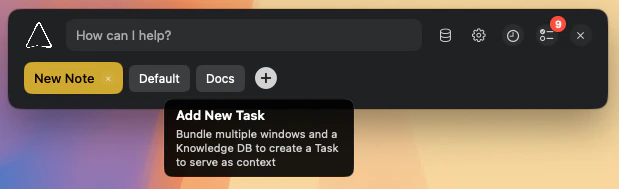 In the Task editor, use the dropdown menu to select from your available Knowledge Bases.
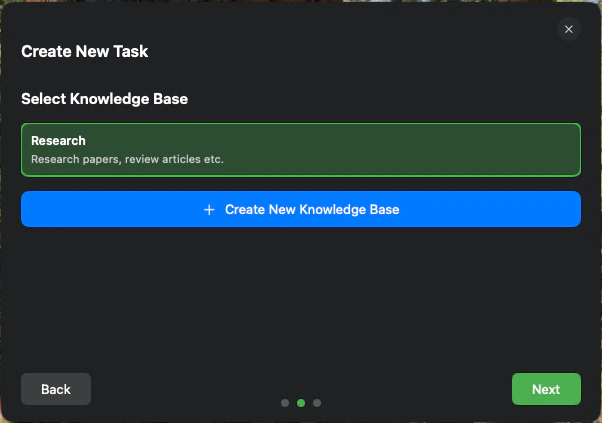 After saving, the selected Knowledge Base will automatically activate whenever you switch to this Task.
### 2. Hot-Attach to Your Current Context
For quick, temporary needs, you can "hot-attach" a Knowledge Base directly to your current context.
In the main Logical window, click the **book icon**.
After saving, the selected Knowledge Base will automatically activate whenever you switch to this Task.
### 2. Hot-Attach to Your Current Context
For quick, temporary needs, you can "hot-attach" a Knowledge Base directly to your current context.
In the main Logical window, click the **book icon**.
 A window will appear listing your Knowledge Bases. Select one and click **Update** to attach it. The book icon will turn green, indicating that a Knowledge Base is active.
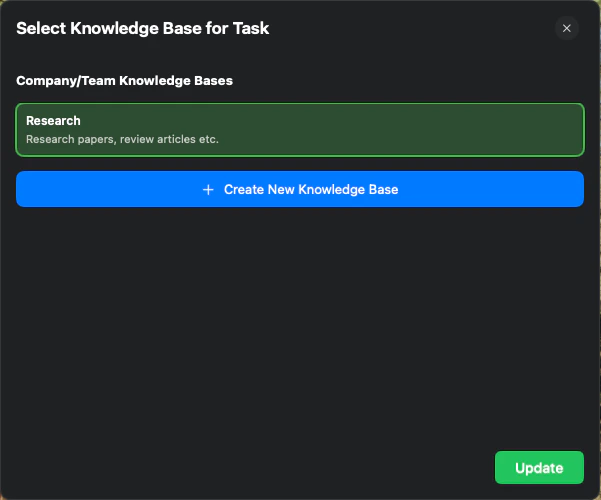 To detach the Knowledge Base, simply click the green book icon again.
## Privacy
Your Knowledge Base contents are stored locally on your device and are not sent to Logical servers.
However, snippets of content may occasionally be sent to third-party LLM service providers for context understanding. For more details on how your data is handled, please refer to our Privacy Policy.
To detach the Knowledge Base, simply click the green book icon again.
## Privacy
Your Knowledge Base contents are stored locally on your device and are not sent to Logical servers.
However, snippets of content may occasionally be sent to third-party LLM service providers for context understanding. For more details on how your data is handled, please refer to our Privacy Policy.